How to Fix Technical SEO Problems That Are Killing Your Rankings
Fix technical SEO issues that block rankings: crawl errors, Core Web Vitals, HTTPS, and more.

Your content is good. Your backlinks are decent. But your rankings are flat, or worse, dropping. Before assuming a technical cause, check which pages and inquiries changed when Google traffic dropped. If that investigation points to crawling, indexing, or site access, the checks below help you investigate further.
Technical SEO is the part of search optimization that happens underneath the content. It controls whether Google can find your pages, whether it can understand them, and whether it decides they're worth ranking. When something breaks here, no amount of great writing or link building fixes it.
And here's what most guides don't tell you: the same technical issues that block Google now block ChatGPT, Gemini, Claude, and every other AI engine from citing your site. If you want visibility in 2025 and beyond, getting your technical foundation right isn't optional. It's the whole game.
This guide walks you through exactly what to fix, in what order, with no fluff.
If you're setting up a new site from the ground up, see our broader checklist on 12 things that matter most when creating a website for how technical SEO fits into the bigger picture.
What technical SEO actually is (and why it's not optional)
Technical SEO is the process of making your website easy for search engines and AI systems to crawl, render, index, and understand. It's not about keywords or content, it's about the infrastructure those things sit on. For the fuller picture of everything this covers, see our technical SEO overview.
Think of it this way: you can write the best article on the internet, but if Google hits a noindex tag or a broken redirect before it even reads the page, that article doesn't exist as far as rankings are concerned.
The crawl → index → rank pipeline
Every page on your site goes through three stages before it can rank:
- Crawl, A bot visits your URL and downloads the page.
- Index, Google processes and stores the page in its database.
- Rank, When someone searches, Google decides how relevant that page is and where to show it.
Technical SEO problems can break any of these stages. A misconfigured robots.txt file stops crawling. A stray noindex tag stops indexing. Slow load times and poor mobile experience hurt ranking. You need all three stages working cleanly. For the mechanics of how Google weighs pages once they clear all three stages, see how Google ranks websites.
Why AI search makes this more urgent than ever
Google isn't the only system crawling your site anymore. ChatGPT's OAI-SearchBot, Claude's ClaudeBot, and Google's AI Mode all send their own crawlers, and they behave differently from Googlebot in one critical way: most AI crawlers don't execute JavaScript.
If your content is loaded client-side through JavaScript, Googlebot will eventually render it. OAI-SearchBot and ClaudeBot won't. They read the raw HTML they get on first load. If your content isn't there, you don't exist to those systems.
Technical barriers like this stay invisible until you actually check for them, you can be doing everything else right and still show up nowhere in AI answers. Citation-tracking tools like AmICited exist for exactly this reason: to show you which AI engines cite your site and which ones don't.
Run a technical audit before you fix anything
Before you start changing things, you need to know what's actually broken. Guessing wastes time and sometimes makes things worse.
Free tools you already have access to
Google Search Console is the most important tool you have, and it's free. Open it and check:
- Coverage report, Shows which pages are indexed, which are excluded, and why.
- Core Web Vitals report, Shows real-world performance data from actual visitors.
- Mobile Usability, Flags pages with mobile rendering problems.
- URL Inspection tool, Lets you check any single URL to see how Google crawled and rendered it.
PageSpeed Insights gives you both lab and field data on load performance, broken down by mobile and desktop.
Google's Rich Results Test validates your structured data markup.
If you want to go deeper, Screaming Frog's SEO Spider (free up to 500 URLs) crawls your whole site the way a search engine does, surfacing broken links, redirect chains, missing tags, and duplicate content in one pass.
What to look for first
Prioritize in this order: crawl errors first, indexing problems second, performance third. A page that can't be crawled can't be fixed by speeding it up.
Fix crawling problems so Google can find your pages
If Google can't reach your pages, nothing else matters. Start here.
robots.txt, the file that accidentally blocks everything
Your robots.txt file tells crawlers which parts of your site they're allowed to visit. It lives at yourdomain.com/robots.txt and takes about 30 seconds to check.
The most common mistake: accidentally blocking important pages or entire directories. This happens during staging site setups that get pushed to production, or when a developer adds a Disallow: / line to block crawling and forgets to remove it.
Check your file right now. Look for any Disallow rules that might cover pages you want indexed. And if you're trying to prevent a page from appearing in search results, don't use robots.txt for that, use a noindex tag instead. A robots.txt block prevents crawling but doesn't guarantee a page won't be indexed if Google finds it through links.
One more thing: if you want AI engines like ChatGPT to be able to read your content, make sure you're not blocking their crawlers. Add explicit Allow rules for OAI-SearchBot and GPTBot if you want ChatGPT visibility. Google's Search Central documentation covers the correct syntax.
XML sitemaps, your roadmap for crawlers
An XML sitemap is a file that lists all the URLs you want Google to crawl and index. It doesn't force Google to do anything, but it makes sure important pages get discovered, especially new content, recently updated pages, or anything that isn't well-linked internally.
Submit your sitemap through Google Search Console under Sitemaps. Keep it clean: only include URLs you actually want indexed. Don't stuff it with pagination pages, filtered URLs, or duplicate content variants.
If your site has more than a few hundred pages, consider separate sitemaps by content type (blog posts, product pages, location pages) so you can track indexing rates for each category independently.
Orphan pages and internal linking gaps
An orphan page is a page with no internal links pointing to it. Google can only find it if it's in your sitemap or if an external site links to it. In practice, orphan pages often go unindexed for months.
Run a site crawl with Screaming Frog and filter for pages with zero inlinks. Then ask: does this page deserve to exist? If yes, add internal links to it from relevant pages. If no, consider consolidating or removing it.
Internal linking is also how you distribute authority around your site. A strong cluster of pages on a topic, all linking to each other and to a central pillar page, signals topical depth to Google. Our crawlability and indexing deep-dive goes further into orphan pages and how internal link structure affects crawl priority.
Fix indexing issues so the right pages actually rank
Getting crawled is step one. Getting indexed correctly is step two.
noindex tags in the wrong places
A <meta name="robots" content="noindex"> tag tells Google not to include a page in its index. It's useful for things like thank-you pages, admin pages, and internal search results. It's catastrophic if it ends up on your homepage or product pages.
This happens more than you'd think, especially after CMS updates, theme changes, or when someone checks a "discourage search engines" box in WordPress settings and forgets about it.
Check your most important pages using the URL Inspection tool in Google Search Console. If a page shows as "excluded" with the reason "noindex tag," that's your problem.
Canonical tags and duplicate content
A canonical tag (rel="canonical") tells Google which version of a page is the "real" one when multiple URLs serve similar content. Without it, Google has to guess, and it sometimes guesses wrong.
Common duplicate content scenarios:
http://vshttps://versions of the same pagewwwvsnon-wwwversions- URLs with and without trailing slashes
- Product pages accessible through multiple category paths
- Printer-friendly or AMP versions
Pick one canonical URL for each piece of content and make sure all canonical tags point to it. Then make sure that canonical URL is the one returning a 200 status code, not a redirect.
Redirect chains and 404 errors
A redirect chain happens when URL A redirects to URL B, which redirects to URL C. Google follows the chain, but it loses a bit of link equity at each hop and wastes crawl budget. Keep redirects to a single step: A goes directly to the final destination.
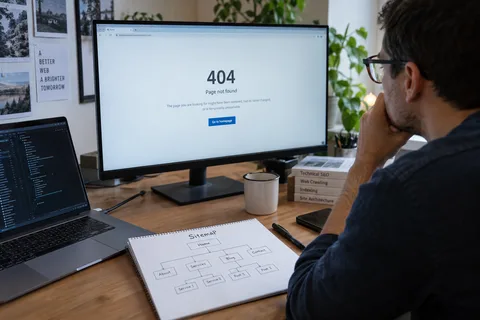
404 errors (pages that don't exist) are normal, they happen when you delete pages or change URLs. The problem is when other pages, or external sites, still link to those dead URLs. Use Google Search Console's Coverage report to find 404s, then either redirect them to the most relevant live page or accept the loss if there's no good destination.
Speed up your site to hit Core Web Vitals targets
Page speed has been a Google ranking factor since 2010 on desktop and 2018 on mobile. But the specific metrics Google uses today are the Core Web Vitals, three numbers that measure real user experience, not just raw load time.
The three metrics that matter
| Metric | What it measures | Good threshold | Poor threshold |
|---|---|---|---|
| LCP (Largest Contentful Paint) | How fast the main content loads | ≤ 2.5 seconds | > 4.0 seconds |
| INP (Interaction to Next Paint) | How fast the page responds to clicks/taps | ≤ 200 ms | > 500 ms |
| CLS (Cumulative Layout Shift) | How much the page jumps around while loading | ≤ 0.1 | > 0.25 |
These thresholds come directly from Google's Core Web Vitals documentation. If you're in the "poor" range on any of these, it's actively hurting your rankings.
Check your current scores in Google Search Console → Core Web Vitals, or run PageSpeed Insights on your most important pages.
Want to know if your technical issues are preventing AI engines from citing your brand? Run a free visibility scan on Lookelo to see exactly which AI engines are, and aren't, finding your site.
Image optimization
Images are the most common cause of slow LCP scores. A few changes make a big difference:
- Convert images to WebP or AVIF format. Both are significantly smaller than JPEG or PNG at equivalent quality. Most modern CMS platforms support this natively or via plugin.
- Set explicit
widthandheightattributes on every image. This prevents layout shift (CLS) because the browser reserves space before the image loads. - Use
loading="lazy"on images below the fold so they don't block initial page load. - Compress images before uploading. A 4MB hero image has no business being on a web page.
JavaScript and CSS bloat
Heavy JavaScript is one of the most common technical SEO problems on modern sites, and one of the hardest to fix without developer help.
The issues are twofold. First, large JavaScript bundles slow down page load and hurt LCP and INP scores. Second, content that's rendered client-side through JavaScript may not be visible to crawlers that don't execute scripts, including most AI crawlers.
Practical steps you can take:
- Defer or async non-critical scripts so they don't block page rendering.
- Remove unused JavaScript and CSS. Most sites load dozens of scripts from plugins, analytics tools, and ad networks that aren't actually needed on every page.
- Use a Content Delivery Network (CDN) to serve static assets from servers geographically closer to your visitors.
- For JavaScript-heavy frameworks (React, Vue, Next.js), consider server-side rendering (SSR) or static site generation (SSG) so critical content is in the initial HTML.
Make your site mobile-friendly (Google checks mobile first)
Google switched to mobile-first indexing in 2016 and completed the rollout in 2023. This means Google primarily uses the mobile version of your site for indexing and ranking, not the desktop version.
If something is missing from your mobile version, it effectively doesn't exist for ranking purposes. If your mobile site is slow or broken, your desktop rankings suffer.
Responsive design vs. separate mobile site
Responsive design, where the same HTML adapts its layout based on screen size, is the approach Google recommends and the one that causes the fewest technical headaches. Separate mobile subdomains (m.yourdomain.com) create duplicate content problems and require careful canonical and hreflang implementation to manage correctly.
If you're still running a separate mobile site, migrating to responsive design is worth the investment.
What breaks on mobile that looks fine on desktop
- Text too small to read without zooming, Google flags this in the Mobile Usability report.
- Buttons and links too close together, tap targets should be at least 48px × 48px.
- Content wider than the screen, forces horizontal scrolling and tanks usability.
- Interstitials and pop-ups that cover the main content, Google penalizes intrusive interstitials on mobile.
- Videos that don't play on mobile, Flash is gone, but some embed types still break on iOS.
Test any page with Google's Mobile-Friendly Test tool (search for it in Google Search Central) and fix whatever it flags.
Switch to HTTPS and keep it clean
HTTPS has been a confirmed Google ranking signal since 2014. If you're still on HTTP, you're losing ranking points and you're triggering "Not Secure" warnings in Chrome, which tanks trust and click-through rates.
Getting an SSL certificate is free via Let's Encrypt. Most hosting providers install it with one click.
But switching to HTTPS isn't just flipping a switch. You also need to:
- Redirect all HTTP URLs to HTTPS with 301 redirects.
- Update all internal links to use HTTPS URLs.
- Fix mixed content warnings, these happen when an HTTPS page loads resources (images, scripts, stylesheets) over HTTP. Browsers block mixed content, which breaks your pages.
- Update your canonical tags and sitemap to use HTTPS URLs.
- Set up certificate renewal so it doesn't expire. An expired certificate takes your site offline.
Check for mixed content issues using browser developer tools (look for warnings in the Console tab) or run your site through an SSL checker tool.
Add structured data to earn rich results
Structured data is code you add to your pages, typically in JSON-LD format, that explicitly tells search engines what your content is about. It doesn't directly improve rankings, but it can earn rich results: star ratings, FAQ dropdowns, how-to steps, product prices, and event details that appear directly in search results.
Rich results dramatically increase click-through rates. A search result with star ratings or an FAQ expansion stands out visually against plain blue links.
Which schema types are worth adding
| Schema type | Best for | Rich result it enables |
|---|---|---|
Article | Blog posts, news | Author, date in results |
FAQPage | FAQ sections | Expandable Q&A in SERP |
Product | E-commerce | Price, availability, ratings |
HowTo | Step-by-step guides | Numbered steps in SERP |
Organization | Homepage | Knowledge panel |
BreadcrumbList | Any site | Breadcrumb path in SERP |
LocalBusiness | Local businesses | Map pack details |
Review | Review content | Star ratings |
Start with the schema types most relevant to your content. Don't add schema for things that aren't actually on the page, Google will ignore it or penalize you for misleading markup.
How to validate your markup
Before you push structured data live, validate it with Google's Rich Results Test (search for it in Google Search Central). It shows you whether your markup is valid and which rich results it's eligible for.
After deploying, monitor the Enhancements section in Google Search Console. It shows errors and warnings for each schema type across your whole site.
Technical SEO for AI search visibility (the part most guides skip)
This is the section that will matter most over the next two years.
AI engines, ChatGPT, Gemini, Claude, Grok, Perplexity, are increasingly the first place people get answers. They pull information from the web, and the technical setup of your site determines whether they can read and cite you.
Why AI crawlers behave differently from Googlebot
Googlebot is sophisticated. It crawls your page, then comes back to render the JavaScript, then indexes the fully rendered content. This process takes time but means JavaScript-rendered content eventually gets indexed.
Most AI crawlers don't work this way. OAI-SearchBot (ChatGPT), ClaudeBot (Claude), and similar crawlers read the raw HTML they receive on the first request. They don't execute JavaScript. If your content only exists after JavaScript runs, common with React, Vue, Angular, and similar frameworks, those AI crawlers see a blank page or a loading spinner.
The fix: make sure your critical content is present in the initial HTML response, not injected by JavaScript after load. Server-side rendering (SSR) or static site generation (SSG) solves this at the framework level. If you're on WordPress or a traditional CMS, you likely don't have this problem.
What you can do right now
- Check your robots.txt for rules blocking AI crawlers. If you have
Disallow: /or broad disallow rules, AI crawlers are likely blocked. - Test your pages with JavaScript disabled. In Chrome, open DevTools → Settings → Debugger → Disable JavaScript, then reload your page. If your content disappears, AI crawlers can't see it either.
- Add structured data, it gives AI systems explicit, machine-readable signals about what your content is and who it's from. This is one of the strongest signals for AI citation.
- Make sure your
robots.txtexplicitly allowsGPTBot,OAI-SearchBot, andClaudeBotif you want to appear in those AI engines. - Track your AI visibility with a tool like Lookelo, which monitors whether AI engines are actually citing your brand across ChatGPT, Gemini, Claude, and others, so you know if your technical fixes are working.
Technical SEO audit checklist
Use this as a recurring review, ideally quarterly, and after any major site change.
| Area | What to check | Tool |
|---|---|---|
| Crawling | robots.txt not blocking important pages | Browser, GSC |
| Crawling | XML sitemap submitted and up to date | Google Search Console |
| Crawling | No orphan pages | Screaming Frog |
| Crawling | AI crawlers allowed in robots.txt | Browser |
| Indexing | No accidental noindex tags on key pages | GSC Coverage report |
| Indexing | Canonical tags pointing to correct URLs | Screaming Frog |
| Indexing | No redirect chains (A → B → C) | Screaming Frog |
| Indexing | 404 errors redirected or accepted | GSC Coverage report |
| Performance | LCP ≤ 2.5s | PageSpeed Insights |
| Performance | INP ≤ 200ms | PageSpeed Insights |
| Performance | CLS ≤ 0.1 | PageSpeed Insights |
| Performance | Images in WebP/AVIF with explicit dimensions | Manual check |
| Mobile | No mobile usability errors | GSC Mobile Usability |
| Mobile | Responsive design implemented | Manual check |
| Security | HTTPS on all pages | Browser |
| Security | No mixed content warnings | Browser DevTools |
| Security | SSL certificate not expired | SSL checker |
| Structured data | Schema validated, no errors | Rich Results Test |
| Structured data | Enhancements monitored | GSC Enhancements |
| AI visibility | AI crawlers not blocked | robots.txt |
| AI visibility | Content present in initial HTML | DevTools (JS disabled) |
| AI visibility | Brand cited by AI engines | Lookelo |
Where to start if you're overwhelmed
Technical SEO has a lot of moving parts. If you're staring at this list and don't know where to begin, here's the order that moves the needle fastest:
- Fix anything blocking crawling first, robots.txt, orphan pages, broken internal links.
- Fix indexing problems second, noindex tags, canonicals, redirects.
- Switch to HTTPS if you haven't, it's a quick win with lasting impact.
- Tackle Core Web Vitals, start with images, which are the easiest fix with the biggest LCP impact.
- Add structured data for your most important page types.
- Check your AI visibility, because that's where search is heading.
You don't have to do everything at once. One fixed crawl error, one cleaned-up redirect chain, one optimized image, each of these compounds over time.
See how your site looks to AI engines right now. Run a free Lookelo scan and find out which AI systems are citing your brand, and which ones can't even find you.
FAQ
What's the difference between technical SEO and on-page SEO?
On-page SEO covers the content and HTML elements on a specific page, titles, headings, keyword usage, meta descriptions. Technical SEO covers the infrastructure the whole site runs on: crawlability, indexing, site speed, HTTPS, mobile-friendliness, and structured data. Both matter, but technical SEO problems can make on-page SEO work pointless if crawlers can't reach or understand the page.
How long does it take to see results from technical SEO fixes?
It depends on how quickly Google recrawls your pages. For a small site, fixes can show up in rankings within a few days to a couple of weeks. For large sites, it can take months for Google to recrawl and re-evaluate every page. You can speed this up by submitting updated URLs through Google Search Console's URL Inspection tool.
Do Core Web Vitals directly affect rankings?
Yes, but they're one signal among many. Google confirmed Core Web Vitals as a ranking factor in 2021. Being in the "poor" range won't tank a site with strong content and backlinks, but it does matter, especially in competitive niches where other signals are equal. And beyond rankings, slow pages directly hurt conversion rates and user experience.
What is crawl budget and do I need to worry about it?
Crawl budget is the number of pages Google will crawl on your site within a given time period. For most sites under 10,000 pages, it's not a concern, Google will crawl everything. It becomes relevant for large e-commerce sites with millions of product pages, filter URLs, and duplicate content variants. If you have a large site, use your robots.txt and canonical tags to guide Google toward your most important pages.
Can I do technical SEO without a developer?
Many technical SEO fixes don't require developer access, checking robots.txt, submitting a sitemap, fixing noindex tags in a CMS, optimizing images, and adding structured data via a plugin are all within reach for non-developers. But some fixes, server-side rendering, CDN setup, JavaScript optimization, do require developer involvement. Start with what you can control, then bring in a developer for the deeper infrastructure work.
Why isn't my site showing up in ChatGPT or Gemini answers?
Several technical reasons can cause this. Your robots.txt might be blocking AI crawlers. Your content might be JavaScript-rendered and invisible to AI bots. Your site might lack the structured data signals that help AI systems understand and trust your content. Or your site simply might not have enough topical authority for the AI to cite it on a given topic. Tools like Lookelo can show you exactly which AI engines are citing your brand and help you diagnose what's blocking visibility.
How often should I run a technical SEO audit?
At minimum, quarterly. Also run one after any major site change: a redesign, CMS migration, URL restructure, new hosting setup, or large-scale content deletion. These events are the most common source of new technical SEO problems. Set up Google Search Console alerts so you're notified of crawl errors and indexing drops as they happen, rather than discovering them months later.