Crawlability Problems: Why Google Can't Crawl or Index Your Pages
Seeing 'cannot be crawled' or 'not indexed' in Search Console? Here is what each Google crawl and indexing error means and how to fix it.
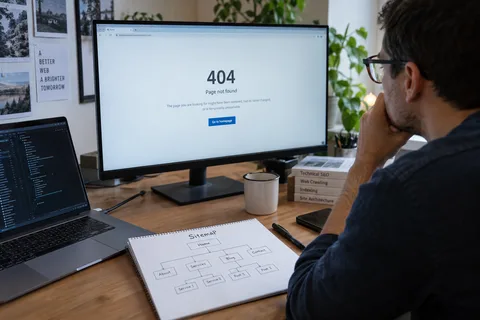
You published a page two weeks ago. It's good. You checked the on-page SEO. You built a couple internal links. And yet when you run a site: search, it's not there. Or worse, Google Search Console shows it under "Crawled – currently not indexed."
Nobody searches for "crawlability and indexing." They paste the error message from Search Console into Google, or they search for why their pages aren't showing up. If you have a specific error, jump to the Search Console error list.
The answer almost always lives in the gap between Googlebot visiting your page and Google deciding it's worth showing. That gap is where crawlability and indexing live, and if you don't understand how they work together, you'll keep hitting the same wall. For the broader picture of everything technical SEO covers, see our technical SEO overview. And if you're troubleshooting this on a site you just launched, our checklist on 12 things that matter most when creating a website covers the full list crawlability fits into.
What crawlability actually means (and what it doesn't)
Crawlability is the simplest concept in technical SEO, and also the most misunderstood. It's one question: can Googlebot reach your URL and fetch its content?
If the answer is yes, the page is crawlable. That's it. Crawlability is not about whether the page is good or whether it ranks. It's a door. Open or closed.
Google discovers pages by following links, reading XML sitemaps, and checking previously crawled URLs. When Googlebot finds a URL, it sends a request to your server. If your server responds with a 200 OK and delivers the page content, the crawl succeeds. If it hits a block, a redirect chain, or a server error, it doesn't.
Start your free technical SEO scan, see which of your pages Google can actually reach.
The three things that control crawlability:
- robots.txt, tells crawlers which URLs they can or can't request. A single
Disallow: /blocks everything. A misplaced wildcard can nuke entire sections of your site. - Internal links, crawlers follow links. Orphan pages (pages with zero incoming internal links) are effectively invisible, even if they're in your sitemap.
- Server response, 5xx errors, DNS failures, and redirect loops all stop crawlers cold.
What indexing actually means
Indexing is the step after crawling. Google takes the content it fetched, analyzes it, and decides whether to store it in the Google index. A page that's indexed can appear in search results. A page that isn't indexed cannot, period.
But here's the part most guides skip: crawling does not guarantee indexing. Google can crawl a page perfectly, render all the JavaScript, and still decide not to index it. You'll see this in Search Console as "Crawled – currently not indexed."
Google doesn't try to index everything it finds. Its How Search works guide says it plainly: "Indexing isn't guaranteed; not every page that Google processes will be indexed."
The indexing decision comes down to a few signals:
- Content quality and uniqueness, thin, duplicate, or auto-generated pages get crawled and dropped.
- Canonical tags, if Google picks a different canonical than you intended, your page gets folded into another URL's index entry.
- noindex directives, the
<meta name="robots" content="noindex">tag orX-Robots-Tag: noindexHTTP header. Often left on staging pages by accident. - Rendering completeness, if JavaScript loads your main content and Google's renderer doesn't run it fully, the page looks empty.
Here's the simplest way to think about the relationship:
| Crawlability | Indexing | |
|---|---|---|
| Question it answers | Can Googlebot reach this URL? | Will Google store and show this page? |
| Happens when | First | Second |
| Blocked by | robots.txt, server errors, no internal links, redirect loops | noindex tags, canonical conflicts, thin content, rendering failures |
| You check it in | GSC URL Inspection Tool, server logs | GSC Pages report (Indexing tab) |
| A failed crawl means | Indexing can't even start | N/A |
| A failed index means | N/A | Page is crawled but won't appear in search |
Diagnose your crawlability issues
The fastest way to check if Google can crawl a page is the URL Inspection Tool in Google Search Console. Paste the URL, hit enter, and look at the "Page fetch" section. If it shows "Failed," you have a crawlability problem.
But one page at a time won't scale. Here's what to do instead:
Check the GSC Pages report
Go to Indexing → Pages in Google Search Console. Look at the "Not indexed" section. Filter for reasons that point to crawl failures:
- URL blocked by robots.txt, Googlebot was told not to crawl this URL.
- Server error (5xx), Google tried to fetch the page and your server returned an error.
- Not found (404), the URL doesn't exist. Google calls this a "soft 404" if the page exists but looks empty.
- Redirect error, too many redirects or a redirect loop.
Crawl your own site first
Use a crawler like Screaming Frog SEO Spider or Sitebulb to simulate what Googlebot sees. Set it to crawl your site and filter by:
- Blocked by robots.txt
- 4xx and 5xx responses
- Orphan pages (in the sitemap but not linked internally)
- Redirect chains longer than 2 hops
Most crawlability problems are configuration errors, not content problems. A staging site's robots.txt that accidentally blocks the production site. A plugin that noindexes category pages. A redirect chain left over from a migration three years ago.
Fix the most common crawlability problems
Your robots.txt is blocking too much
Open /robots.txt on your site. Look for Disallow: rules. The most dangerous pattern is:
Disallow: /
That blocks everything. But subtler mistakes do real damage too:
Disallow: /wp-admin/
Disallow: /wp-includes/
Disallow: /*.js$
That last line blocks all JavaScript files. Google needs those to render your pages. If you block JS, Google sees a blank page and won't index it. Google's own documentation says you should allow crawlers access to CSS, JS, and image files.
Fix: remove the Disallow: /*.js$ and Disallow: /*.css$ lines. These were common advice a decade ago and they're still in a lot of WordPress setups.
Your internal linking is weak
Google discovers pages through links. If your most important page sits five clicks from the homepage and has one internal link pointing to it, Google will crawl it slowly or not at all.
A flat site architecture helps. Every important page should be reachable within three clicks from the homepage. Use descriptive anchor text that tells Google what the linked page is about.
Run a crawlability audit on Lookelo to find orphan pages and weak internal links before they cost you rankings.
You're serving the wrong status codes
A 200 OK means the page is fine. A 301 redirect tells Google to go somewhere else. A 404 means the page doesn't exist. A 500 means the server is broken.
But soft 404s are the sneaky ones. Your page returns a 200 OK but the content is empty, a thin error message, or a "no results found" page. Google sees this and treats it as a 404. Fix by either adding real content or returning a proper 404 with a helpful message.
Common Search Console crawl and indexing errors (and what they mean)
These are the messages people paste into Google most often. Each heading uses the wording you'll see in Search Console (the Page indexing report or the URL Inspection tool) or in a Lighthouse audit. Below each one: what it means and what to do.
"Page cannot be indexed: Not available due to a site-wide issue"
This shows up when you run a live test in the URL Inspection tool. "Not available due to a site-wide issue" means Google couldn't reach your site at all, so it never got as far as your page. Google's URL Inspection help lists the possible causes: "DNS server unresponsive," "DNS error: Host unknown," "Server connection error," "Server invalid response," "Invalid server SSL certificate," "Robots.txt unreachable," and "Hostload exceeded."
Fix: open the Page fetch details to see which cause applies. Confirm your domain resolves, your SSL certificate is valid, and /robots.txt loads without a server error or timeout. "Hostload exceeded" means your server is at the limit of what Google will request from it, so wait and retest. Google notes these errors can be temporary, so run the live test again before you change anything.
"URL cannot be crawled" or "URL blocked by robots.txt"
Search Console has no status with the exact words "URL cannot be crawled" or "page cannot be crawled." What you'll actually see is one of these:
- URL blocked by robots.txt in the Page indexing report. A rule in your robots.txt file stops Googlebot from requesting the page.
- Crawl allowed? No in URL Inspection. The same robots.txt block, shown for a single URL.
- Page fetch: Failed in URL Inspection. Google tried to fetch the page and got an error, such as a 404, a 5xx, or a redirect problem.
Fix: find the blocking rule with the robots.txt report and URL Inspection, remove or narrow it, then run a live test. One catch: robots.txt stops crawling, not indexing. Google's Page indexing report help explains that a blocked URL can still be indexed if other pages link to it ("Indexed, though blocked by robots.txt"). To keep a page out of search, allow crawling and use noindex instead.
"Crawled – currently not indexed"
Google's definition: "The page was crawled by Google but not indexed. It may or may not be indexed in the future; no need to resubmit this URL for crawling." The crawl worked. Google read the page and decided it wasn't worth adding, at least for now.
The usual causes:
- Thin content. The page has little unique text or nothing a searcher can't get elsewhere. This is common on tag pages, filtered category pages, and auto-generated location pages.
- Duplicate content. The page is nearly identical to another page on your site or on another domain. Google sees no reason to index both.
- Low authority. New sites and sites with few backlinks often see this status. Google crawled the page but doesn't trust the domain enough to index every URL.
Fix: improve or consolidate the page instead of resubmitting it. Merge thin pages with 301 redirects or canonical tags, add content only you can provide, and link to the page from pages that already get traffic.
"Discovered – currently not indexed"
Google knows the URL exists but hasn't crawled it yet. Google's explanation: "Typically, Google wanted to crawl the URL but this was expected to overload the site; therefore Google rescheduled the crawl." That's why the last crawl date in the report is empty.
Common on:
- Large sites with thousands of URLs
- Sites with slow server response times
- New pages on low-authority domains
Fix: make your server faster and more reliable so Google can crawl more without overloading it. Cut low-value URLs (faceted filters, URL parameters, thin tag pages) so Google spends its crawls on pages that matter. Link to the page from pages Google already crawls often.
"Links are not crawlable"
This one comes from the SEO section of a Lighthouse or PageSpeed Insights report, not Search Console. Lighthouse flags <a> elements with a missing or empty href, a javascript:void(0) link, or an href that can't be resolved as a URL (Lighthouse source). Google's link guidelines say it can only reliably follow an <a> element with an href that points to a real URL.
Fix: replace links like <a onclick="goto('/shoes')"> or <span> elements styled as links with <a href="/shoes">. JavaScript-only buttons are fine for actions, but they shouldn't be the only path to a page.
"Page with redirect"
Google found a redirect and followed it. The destination page might be indexed instead. This is normal for 301 redirects, but check that the redirect chain isn't too long. Two or more consecutive redirects waste crawl budget and can confuse Google.
"Excluded by 'noindex' tag"
Google's help docs call this "URL marked 'noindex'." The page has a <meta name="robots" content="noindex"> tag or an X-Robots-Tag: noindex HTTP header. This is often intentional for admin pages, thank-you pages, and internal search results. But it's also common to find noindex tags on pages that should be indexed, left over from development, or applied by a checkbox in a SEO plugin.
Fix: check the page source. If you're on WordPress, check the "Allow search engines to index this page" setting in Yoast or Rank Math. If you're not on a CMS, check the raw HTML for noindex in the robots meta tag.
How to get Google to crawl your site faster
You can't force Google to crawl or index a page. Google's recrawl guide says crawling "can take anywhere from a few days to a few weeks," and that requesting a crawl "does not guarantee that inclusion in search results will happen instantly or even at all." What you can do is make the page easy to find, then ask once:
- Fix the blockers first. Requesting indexing for a page that's blocked by robots.txt, marked noindex, or returning errors does nothing.
- Request indexing in URL Inspection. Paste the URL and click "Request indexing." There's a quota, and requesting the same URL again won't get it crawled any faster.
- Submit an XML sitemap. For more than a handful of URLs, submit a sitemap in the Sitemaps report. Keep it to canonical, indexable URLs.
- Link to the page from pages Google already crawls. A link from your homepage or a popular post helps Google find a new page sooner than a sitemap entry alone.
Crawl budget: when it matters and when it doesn't
Crawl budget is the number of URLs Googlebot will crawl on your site in a given day. For most sites, it's not a constraint. Google has said that sites under a few thousand URLs rarely need to worry about crawl budget.
But if you run a large ecommerce site, a job board, a news site, or any site with thousands of pages, crawl budget is real. Google allocates crawl capacity based on two things:
- Crawl demand, how popular and fresh your pages are. Pages with more backlinks and more frequent updates get crawled more often.
- Crawl rate limit, how fast Googlebot can crawl without overwhelming your server. If your server is slow, Google slows down.
Wasting crawl budget is easy. Every faceted navigation URL, every session ID parameter, every paginated page beyond page 5, every thin tag page, these all eat crawl budget. Googlebot spends time on them instead of your product pages.
Fix: block faceted navigation URLs in robots.txt. Use canonical tags to point parameterized URLs to the clean version. Remove or noindex thin pages. Keep your sitemap clean and only include canonical, indexable URLs.
JavaScript and indexing: what you're probably getting wrong
Google renders JavaScript. It has since 2019. But rendering takes time and resources. Google crawls the HTML first, then queues the page for rendering in a second wave. That second wave can take days or weeks.
If your content lives entirely in JavaScript, React apps, Vue apps, client-side rendered pages, you're gambling that Google's renderer will process your page before it makes an indexing decision.
The safer approach:
- Server-side rendering (SSR) or static generation for content-heavy pages. Google gets the full HTML in the first crawl.
- Dynamic rendering for pages that must be client-side. Serve a fully rendered HTML snapshot to Googlebot while users get the JS version.
- Test with the URL Inspection Tool. Click "View Crawled Page" and look at the screenshot. If your content is missing, Google didn't render it.
Mobile-first indexing adds another layer. Google now crawls and indexes the mobile version of your page. If your mobile site loads a stripped-down version with less content, that's what Google indexes. Make sure your mobile and desktop content match.
Canonical tags: the silent index killer
Canonical tags tell Google which URL is the "real" version of a page. When you have the same content on multiple URLs, the canonical tag consolidates them into one index entry.
But canonical tags go wrong in predictable ways:
- Self-referencing canonicals that point to the wrong URL. If your page is at
example.com/pagebut the canonical tag saysexample.com/page?utm_source=newsletter, Google might ignore your preferred URL. - Canonical chains. Page A canonicalizes to page B, which canonicalizes to page C. Google will eventually figure it out, but it wastes crawl budget and can cause indexing delays.
- Cross-domain canonicals that aren't honored. Canonicalizing to a different domain is a suggestion, not a directive. Google may ignore it if the content is significantly different.
Fix: every page should have a single, self-referencing canonical tag. Audit your canonicals with a crawler. Look for pages where the canonical doesn't match the actual URL.
Crawlability and AI search engines
Crawlability matters for AI-powered search engines too. Tools like Grok, ChatGPT Search, and Perplexity use crawlers to discover and read web content. If your pages are blocked by robots.txt, inaccessible due to JavaScript rendering issues, or simply not indexed, AI engines can't cite you either.
A crawlability and indexing audit checklist
Run through this list every time you launch a new site, migrate a domain, or notice a drop in organic traffic.
Crawl access
- robots.txt is not blocking important pages or resources
- robots.txt includes your sitemap URL
- No accidental
Disallow: /in production
Sitemap health
- XML sitemap is submitted in Google Search Console
- Sitemap only includes indexable URLs (no
noindexpages, no redirects, no 404s) - Sitemap updates automatically when new content is published
Indexing controls
-
noindextags are only on pages you intentionally want excluded - Canonical tags point to the correct preferred URL
- No canonical-to-noindex conflicts
Site architecture
- Every important page is reachable within 3 clicks from the homepage
- No orphan pages (pages with zero internal links)
- Internal anchor text is descriptive
Technical health
- All pages return correct HTTP status codes (200 for live pages, 301 for permanent redirects, 404 for truly missing pages)
- No redirect chains longer than two hops
- Core content is in the HTML, not dependent on JavaScript to render
- Site loads on HTTPS with a valid SSL certificate
Monitoring
- GSC Pages report reviewed monthly
- Crawl errors investigated and resolved within 30 days
- New content verified as indexed within 1 to 2 weeks of publishing
How to check your work
After you fix crawlability and indexing issues, verify that the fixes worked:
- URL Inspection Tool: test the live URL. If Google can fetch it, crawlability is fixed.
- Request Indexing: click the button in the same tool to ask Google to re-crawl the page. Once is enough.
- Check the GSC Pages report: come back in a week. The "Not indexed" counts should drop.
- Log file analysis: if you have server access, check your logs for Googlebot activity. Look for 200 responses on previously blocked URLs.
If the fixes above don't hold, walk back through how to fix technical SEO problems that are killing your rankings for the wider set of issues that can block crawling and indexing.
Start monitoring your crawlability and indexing on Lookelo, weekly scans that catch these issues before they become traffic killers.
My page is indexed but not ranking: what now?
Indexing only makes a page eligible to appear. If URL Inspection says "URL is on Google" but the page gets few or no impressions, crawlability is no longer the problem. Relevance, content quality, competition, or authority is. Check which queries the page shows up for in the Performance report, compare it with what currently ranks for those queries, and improve the page against that. Our guide on how Google ranks websites covers the ranking factors that take over from here.
FAQ
What's the difference between crawlability and indexing?
Crawlability is whether Googlebot can reach and fetch your page. Indexing is whether Google stores that page in its database and makes it eligible for search results. Crawling happens first. A page can be crawlable but not indexed, for example, if it has thin content or a noindex tag.
Why does Google Search Console show "Crawled – currently not indexed"?
Google fetched the page but decided not to add it to the index, usually because of thin, duplicate, or low-value content. Improve or consolidate the page rather than resubmitting it.
What does "Discovered – currently not indexed" mean?
Google knows the URL exists but postponed crawling it, typically because crawling then was expected to overload your site. Faster hosting, fewer low-value URLs, and stronger internal links help.
How do I check if my robots.txt is blocking Google?
Open yourdomain.com/robots.txt in a browser and look for Disallow: rules. In Search Console, the robots.txt report shows the file Google last fetched, and URL Inspection shows "Crawl allowed?" for any single URL.
Does JavaScript affect indexing?
Yes. Google renders JavaScript, but not immediately. Pages that rely entirely on client-side JavaScript for content may experience delays in indexing. Server-side rendering or dynamic rendering are safer options for content-heavy pages.
How long does it take for Google to index a new page?
Google says crawling can take anywhere from a few days to a few weeks. New sites, pages with few internal links, and pages on slow servers tend to take longer. Requesting indexing in URL Inspection can help, but it doesn't guarantee the page gets indexed.
Can a page rank without being indexed?
No. A page must be in Google's index to appear in search results. If a page isn't indexed, it can't rank for any query.
What's the fastest way to fix indexing problems?
Consolidate thin and duplicate pages using canonical tags or 301 redirects. Remove accidental noindex tags. Improve your internal linking so important pages are linked from high-authority pages on your site. Submit a clean XML sitemap in Google Search Console.
Should I block CSS and JavaScript files in robots.txt?
No. Google specifically recommends allowing crawlers access to CSS, JS, and image files. Blocking them prevents Google from rendering your pages correctly, which can hurt indexing.
You don't need to understand every edge case in crawlability and indexing to fix your site. You need to know the three things that block crawling (robots.txt, internal links, server errors) and the four things that block indexing (noindex tags, canonical conflicts, thin content, rendering failures).
Start with the GSC Pages report. Sort by the biggest bucket of "Not indexed" pages, fix the root cause, and check back in a week. Most of these problems are a setting someone changed and forgot about.